RenameAgent Installation and Usage Guide
CoRename Agent helps you perform Coordinated Renaming throughout your codebase.
Coordinated renaming refers to the process of consistently updating the names of various identifiers—such as class names, methods, parameters, and fields—that share a semantic relationship or naming pattern.
Unlike a simple text-based rename, coordinated renaming ensures naming consistency across your project.
CoRename Agent takes a rename performed by you and propagates renames throughout the codebase for the sake of consistency. The agent propagates renaming changes using the names provided by the developer; it does not suggest better names.
Here is an example from an open source project.
In this commit, the developers consistently renamed RestoreMode to RecoveryClaimMode, changing the names of methods, fields, and classes.
Table of contents
Installation
Prerequisite software
Please download and install the following software. These are required to use the tool:
- IntelliJ IDEA version 2025.2. As of Nov 2025, this is the latest stable release of IntelliJ IDEA.
- Docker – the agent runs as a docker container and communicates with your IDE. We recommend downloading and installing the Docker Desktop application.
Plugin installation and IDE Setup
-
Download the plugin from this webpage by clicking the following link: plugin
Note: Do not extract the contents of the downloaded zip file. Browsers like Safari may auto-extract the zip file’s contents (which may cause installation issues). To prevent this, download the plugin by: right click on the link and select
Download Linked FileorSave As. -
Open your favourite Java project in IntelliJ IDEA.
If you are unfamiliar with IntelliJ IDEA, please see this official documentation to import a Java project. If possible, you should use the tool on projects you are familiar with (and have contributed to)
However, if you have not written much of your own Java code, here are some Java projects that are seamlessly compatible with IntellJ IDEA. You may choose to download and import one of these projects into IntelliJ IDEA:
- Follow the instructions in this document to “install plugin from disk” in your IDE. Be sure to restart the IDE after installing the plugin.
-
To confirm that the plugin is correctly installed, open CoRename Agent’s
Tool WindowClick onView | Tool Windows | CoRename Agent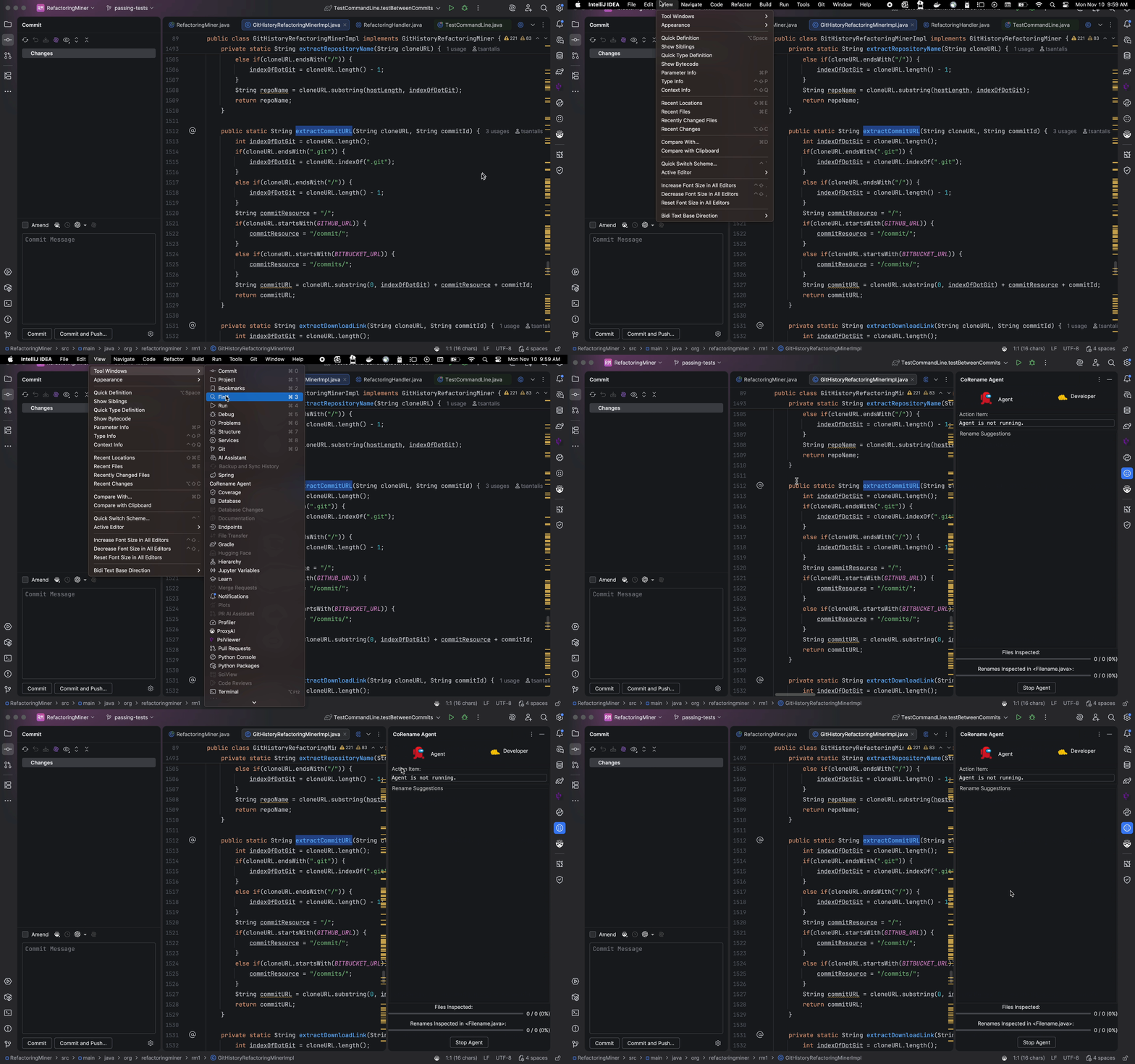 Please leave the tool window open when you are working with the agent.
 - Finally, configure your LLM API key:
- Go to
Settings | Tools | Large Language Modelsand enter your API key in the “LLM API Key” field.

- Go to
Working with the CoRename Agent
CoRenameAgent works with you, the developer, hand-in-hand to find similar renames throughout the code base. From time to time, the agent requires explicit intervention from you. The status bar at the top of the tool window indicates when the agent is running, and when your intervention is required.
Before the tool is triggered, the tool’s status is depicted like this (notice that neither icon is moving):
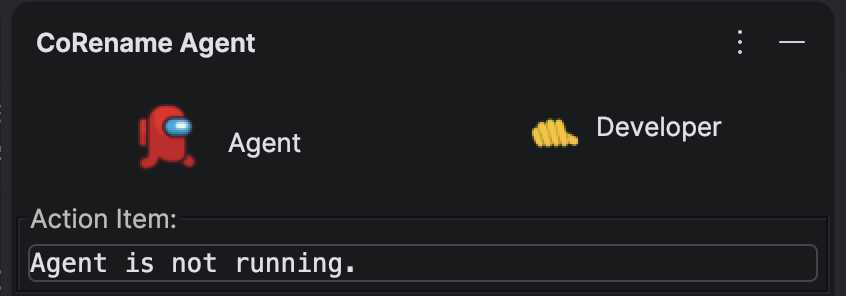
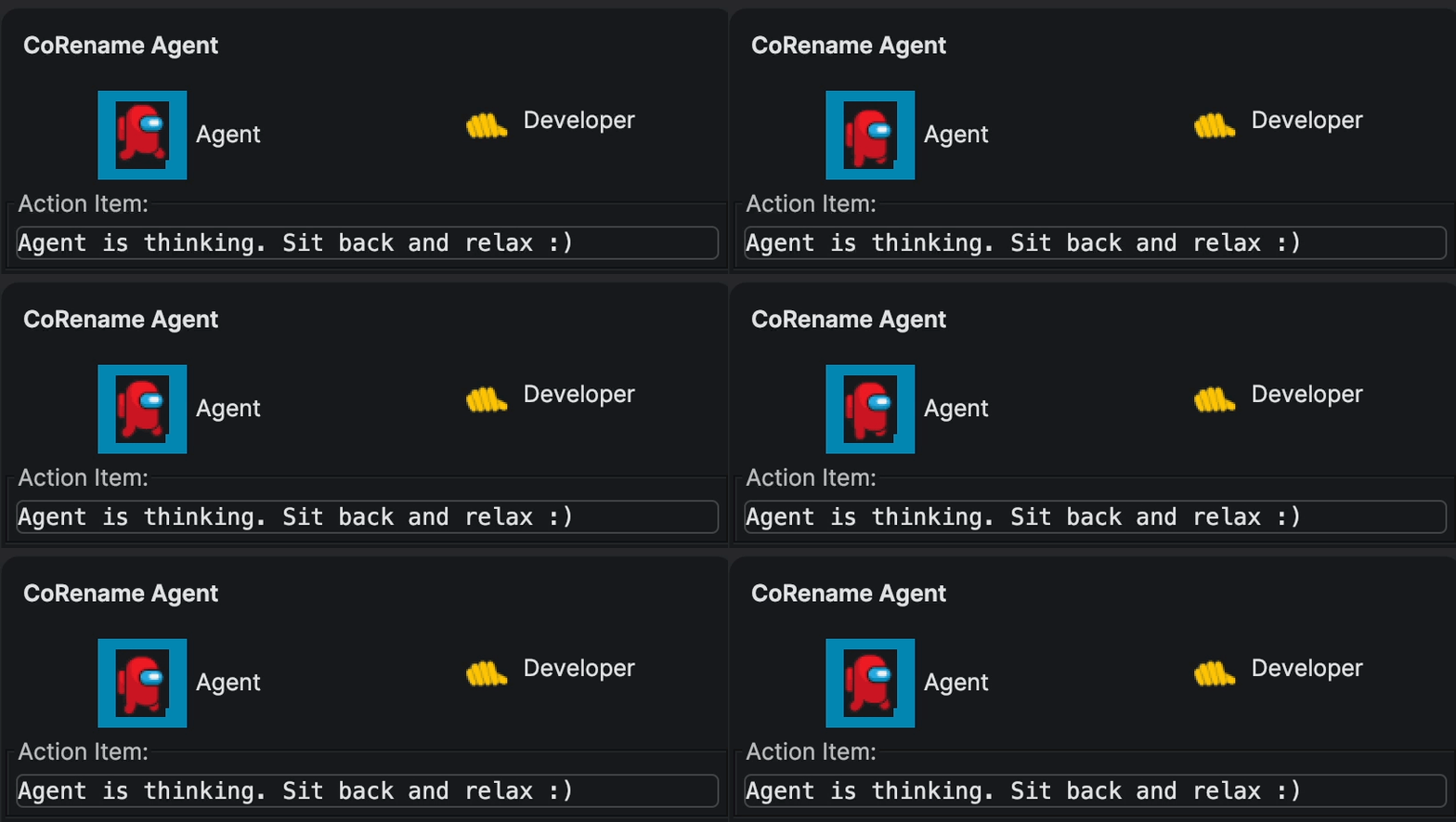
When the agent is executing, the robot icon starts running. At this point, you are not required to do anything:
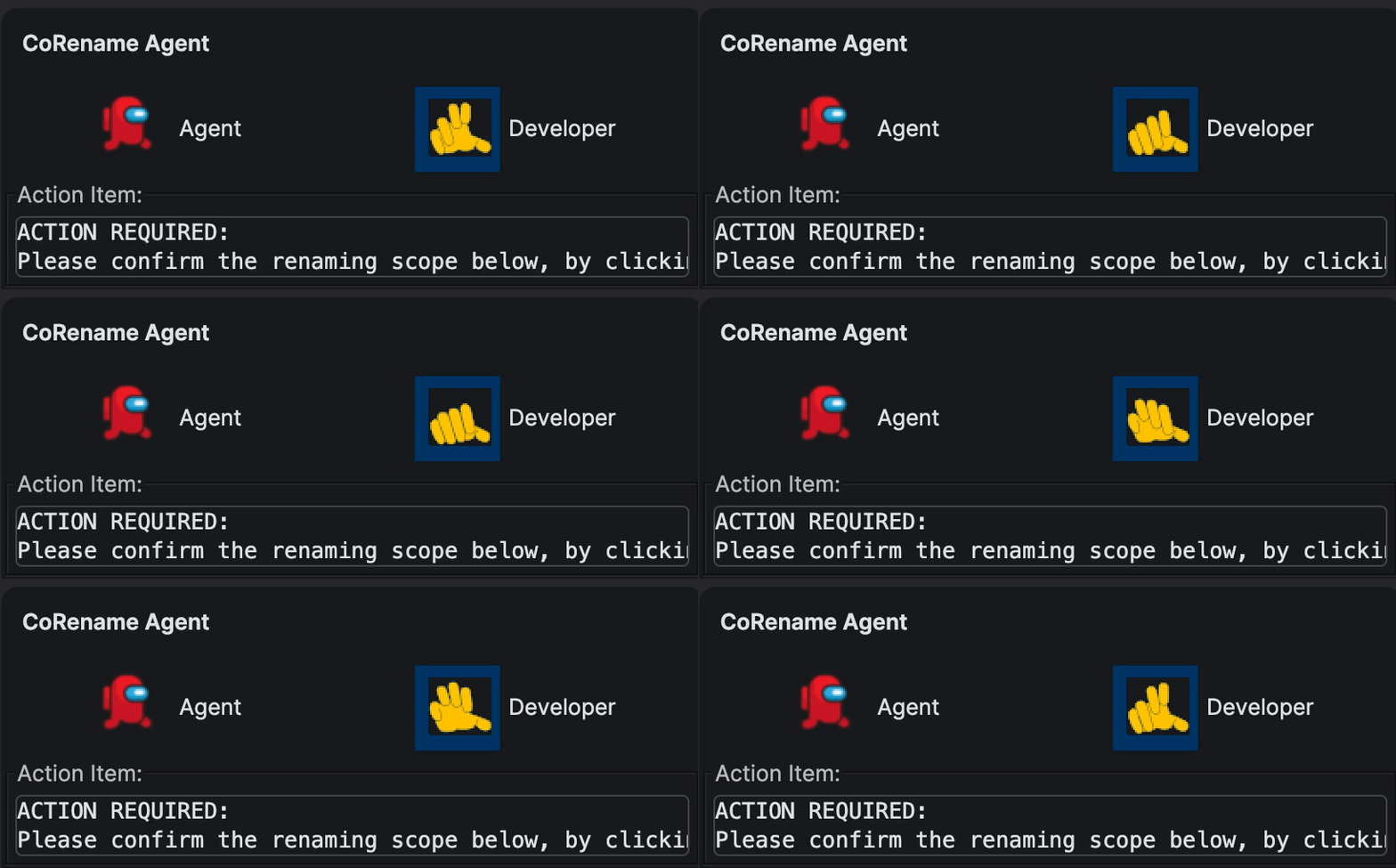
When your intervention is required, the robot icon stops, and the hand icon starts moving. At this point your input is required for the agent to proceed.
Triggering CoRename Agent
The agent is monitoring your renaming activity as you are coding, and suggests to start a CoRename activity by sending a pop-up notification. You may choose to engage with the agent based on your convenience, by clicking “trigger agent” on the pop-up notification.
-
Open the
CoRename Agenttool window.Click on
View | Tool Windows | CoRename Agent, or click the icon on the right:
- Trigger a rename refactoring in IntelliJ IDEA.
- Right click on the name you’d like to change
- Click
Rename - Type a new name
- Hit
Return
-
Review the notification in your IDE, and click
Trigger Agentto start the CoRename AgentThe gif below shows execution of Step 2 and 3:
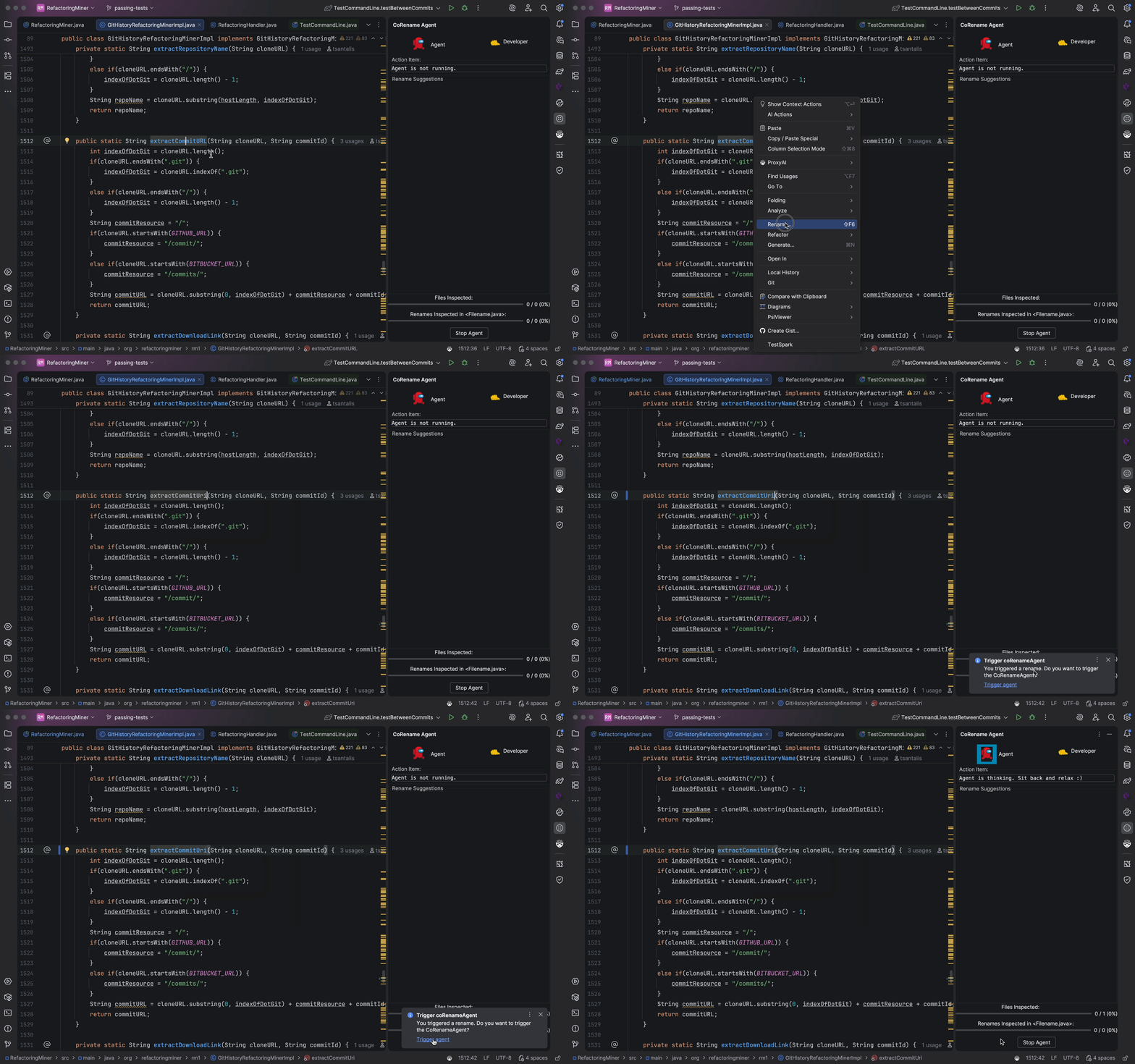
When the agent is successfully triggered, the robot icon begins moving.
Developer Intervention
The agent requires explicit review (accept/reject) from you in two distinct scenarios:
- Reviewing the agent’s renaming suggestions
- Reviewing the guard conditions where renaming should be applied
Reviewing Agent’s Renaming Suggestions
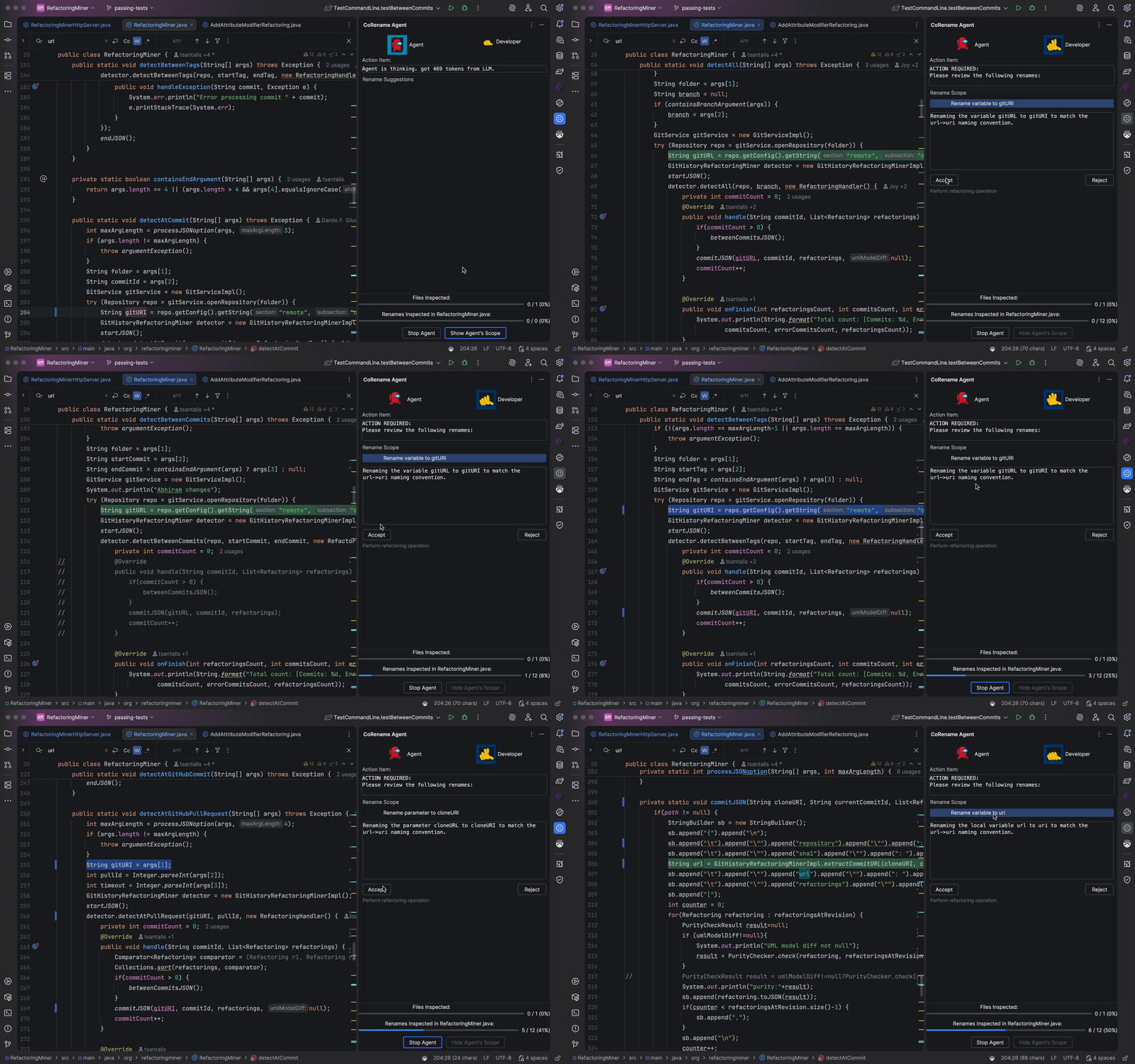
When the agent finds related identifiers, it presents them to you for approval in the tool window. Click (or double click) on the suggestion to view it in your editor. You must accept or reject the suggestion by clicking the appropriate button, in order for the agent to proceed.
Reviewing Guard Conditions
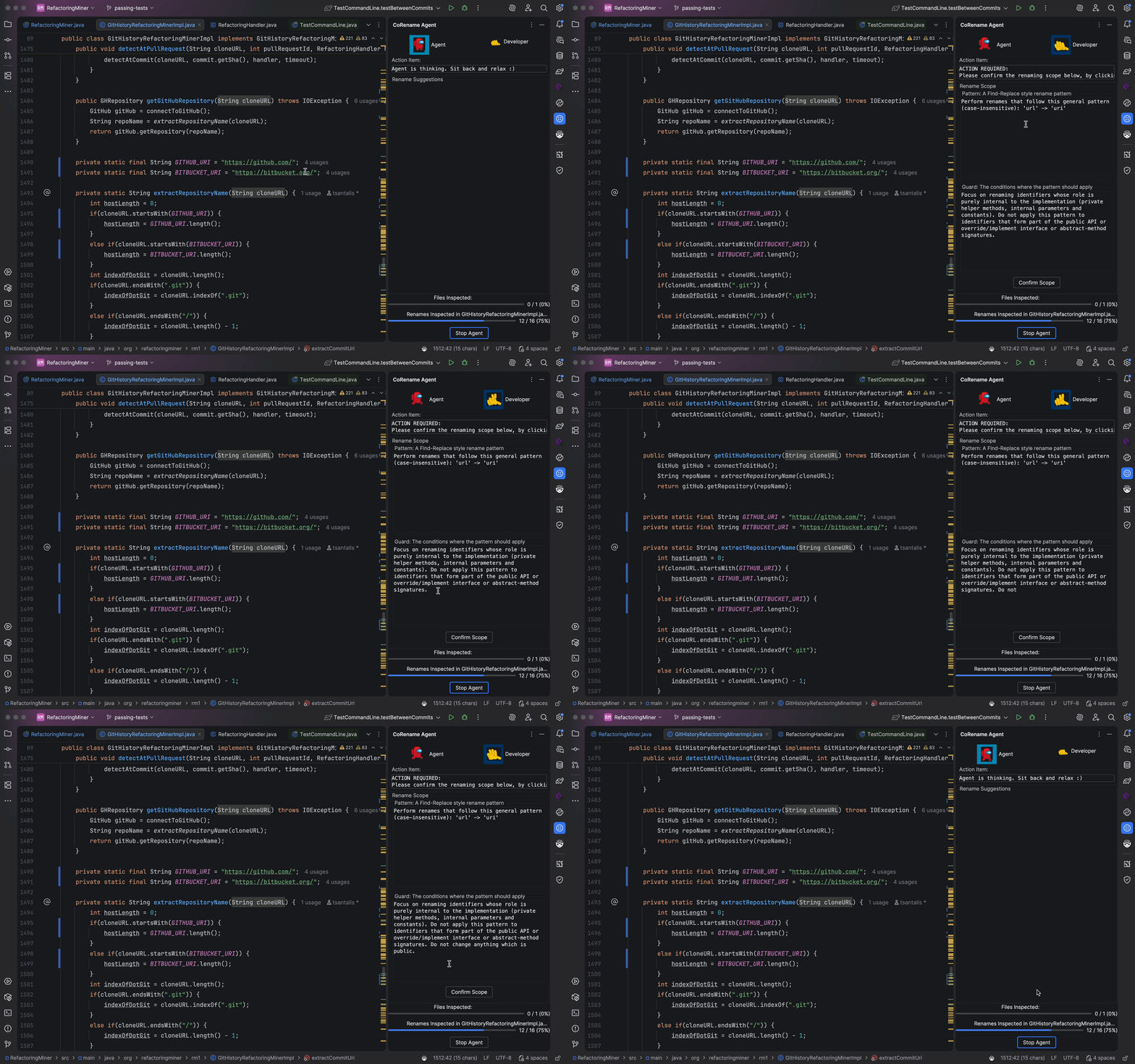
If you have rejected multiple suggestions, the agent reasons about the rejections and changes its internal state to match your needs. The agent’s internal state is presented to you for review, in the form of two text boxes:
- Renaming Pattern – A find-replace style pattern for renaming identifiers.
- Guard Conditions – The specific conditions where the Renaming Pattern should apply.
You may choose to edit the text boxes before approving.
Once you’re happy with the pattern and guard, you must press the Confirm Scope button to proceed.
Optional: Stop the agent
You may choose to stop the agent before it finishes its execution, by clicking the Stop Agent button at the bottom of the tool window at any point during the execution.
The Agent’s Refactoring Report
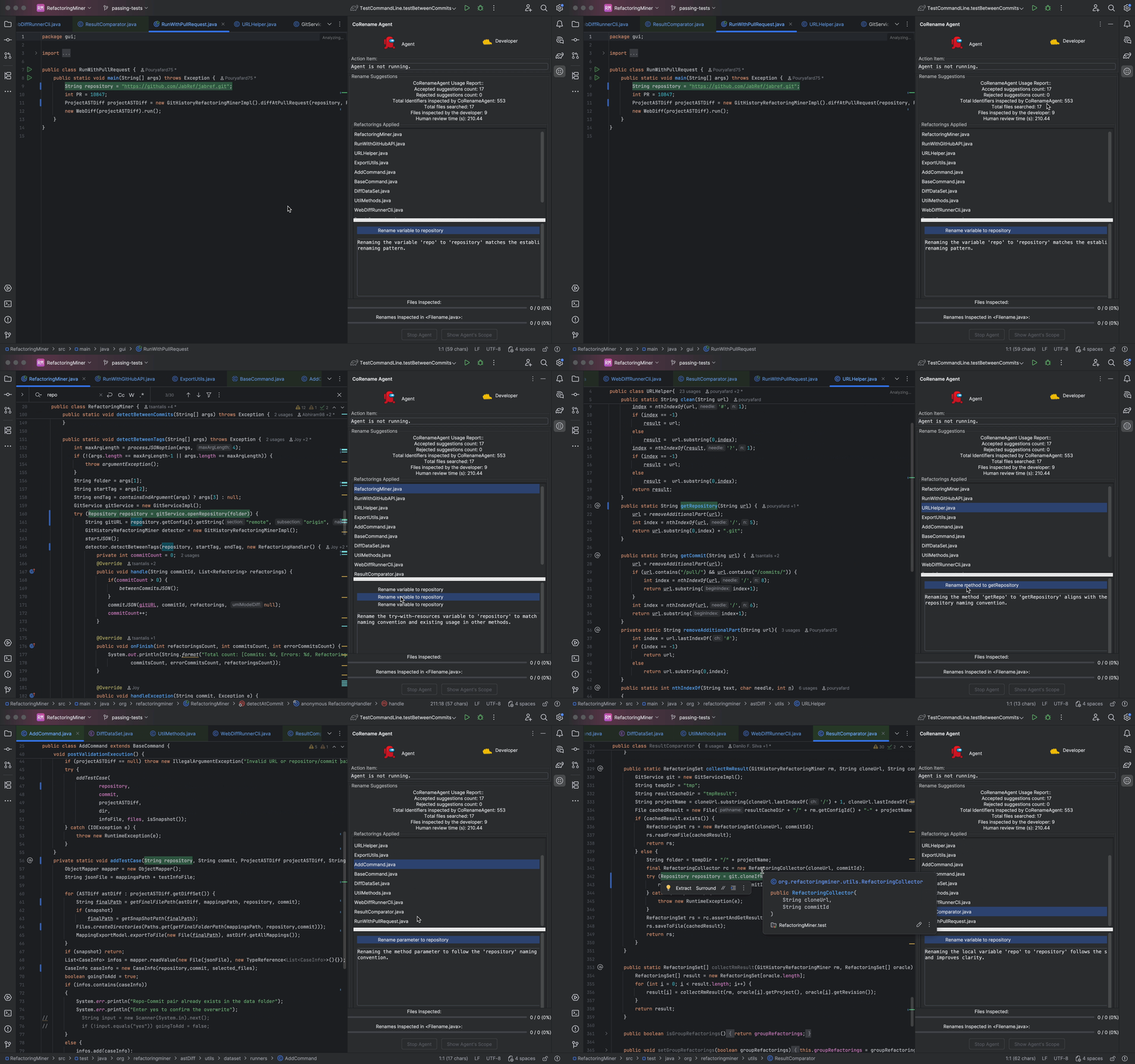
After the agent finishes executing, it presents a report of the changes made, including:
- Number of suggestions accepted/rejected
- Number of identifiers inspected
- Lines of Code changes
- Files Changed
- Refactorings applied
- …
You can interact with the report by clicking on the file names and viewing the changed source code.
Telemetry data
The plugin stores anonymous telemetry data on your local machine. It does NOT contain any personal information about you or about the code that you develop. Manually sending this telemetry data to us, will help us understand how developers think about the plugin suggestions. The recorded information is in a human-readable format, so you can proofread it before sending it to us.
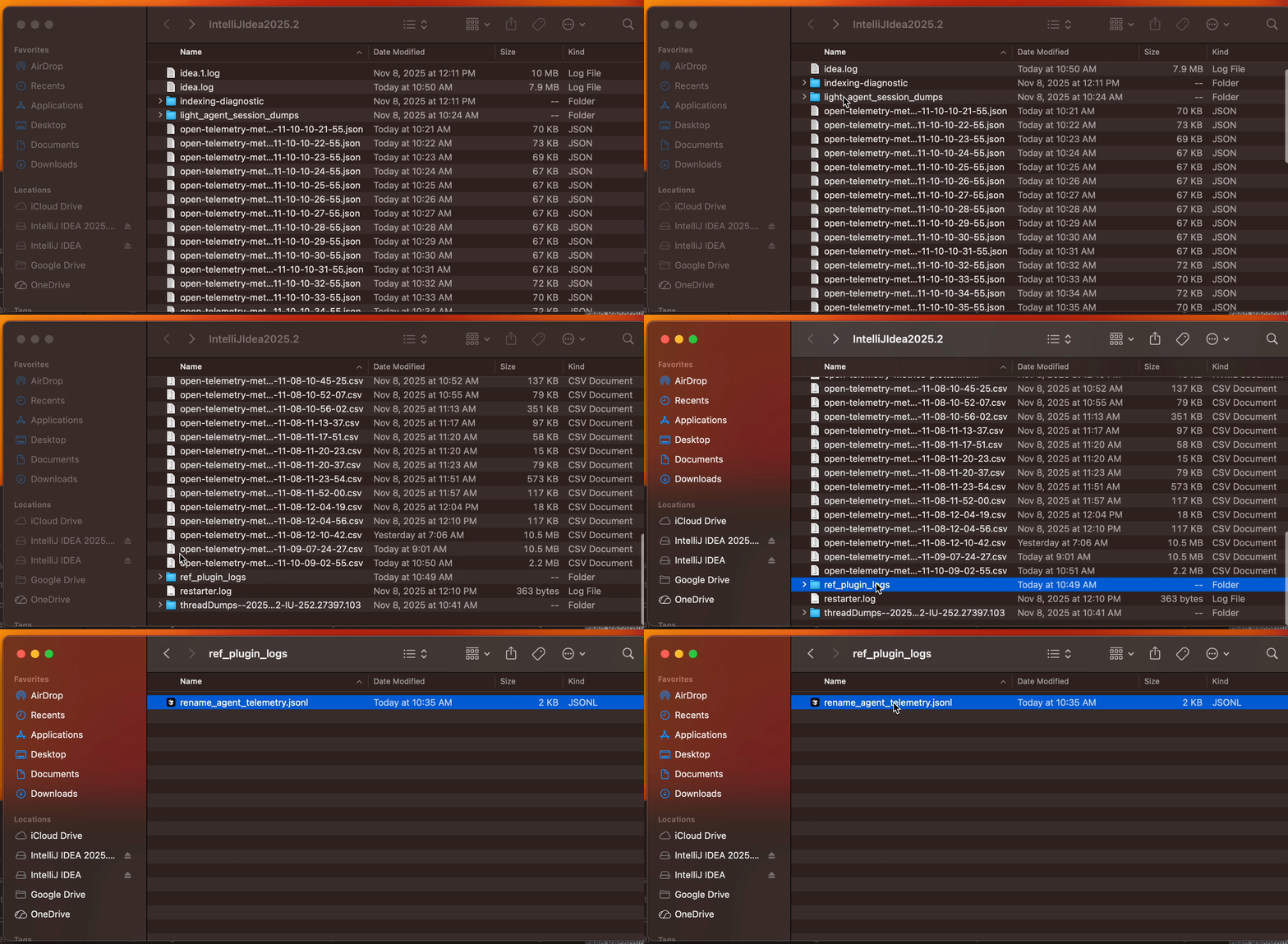
Telemetry data is collected in a file on the local machine of the developer, under the IntelliJ Idea folder
ref_plugin_logs/rename_agent_telemetry.jsonl. In my case, the full path
is ~/Library/Logs/JetBrains/IntelliJIdea2025.2/ref_plugin_logs/rename_agent_telemetry.jsonl.
The data in stored in JSONL format.
Each line in the telemetry file represents a JSON object, parseable by a json parser. You can use this online formatter to view the contents of your telemetry data before you send it to us.
How to find the telemetry data file?
- Click
Help | Show Log in Finder
- Locate the telemetry file under “ref_plugin_logs/rename_agent_telemetry.jsonl”
Troubleshooting
Known Issue: Multiple projects open in the IDE
The plugin may not work correctly if you have multiple projects open in IntelliJ IDEA at the same time. Please close all other projects and keep only the project you want to refactor open. You may need to restart IntelliJ with just that single project loaded for the plugin to function properly.
Wait for indexing and imports to finish
Before using the plugin, ensure that IntelliJ has completed all background tasks such as indexing, scanning, and import resolution. Running the plugin while these tasks are still in progress may cause it to behave unexpectedly. You can check the status bar at the bottom of your IDE to confirm that all tasks have finished.
Reporting Bugs
CoRenameAgent is a research prototype and may have some unexpected bugs. To help us fix bugs, please share your IDE logs when reporting issues with the tool.
Click Help | Collect Logs and Diagnostic Data, and share the zip file with us.